

How to insert a contact form inside a content Drupal 8? Or on a specific page in a specific location ? By default, contact forms created have a dedicated page. But if we want to use them elsewhere. After some research, I almost thought I should write a few lines of code to create a specific Plugin.
But contact forms, like almost everything now in Drupal 8, are entities. Finally, place a contact form, or any other form besides, is a simplicity that had eluded me until now.
No need of Panels, Display Suite or some custom preprocess functions. We will just need the Contact storage module, whose primary purpose is to extend the contact forms to store in the database their different bids, and we will see a little further, which add a little icing on the cake .
Discover how to inject a contact form inside content. This method can as well be used on any fieldable entity, such as blocks, for example.
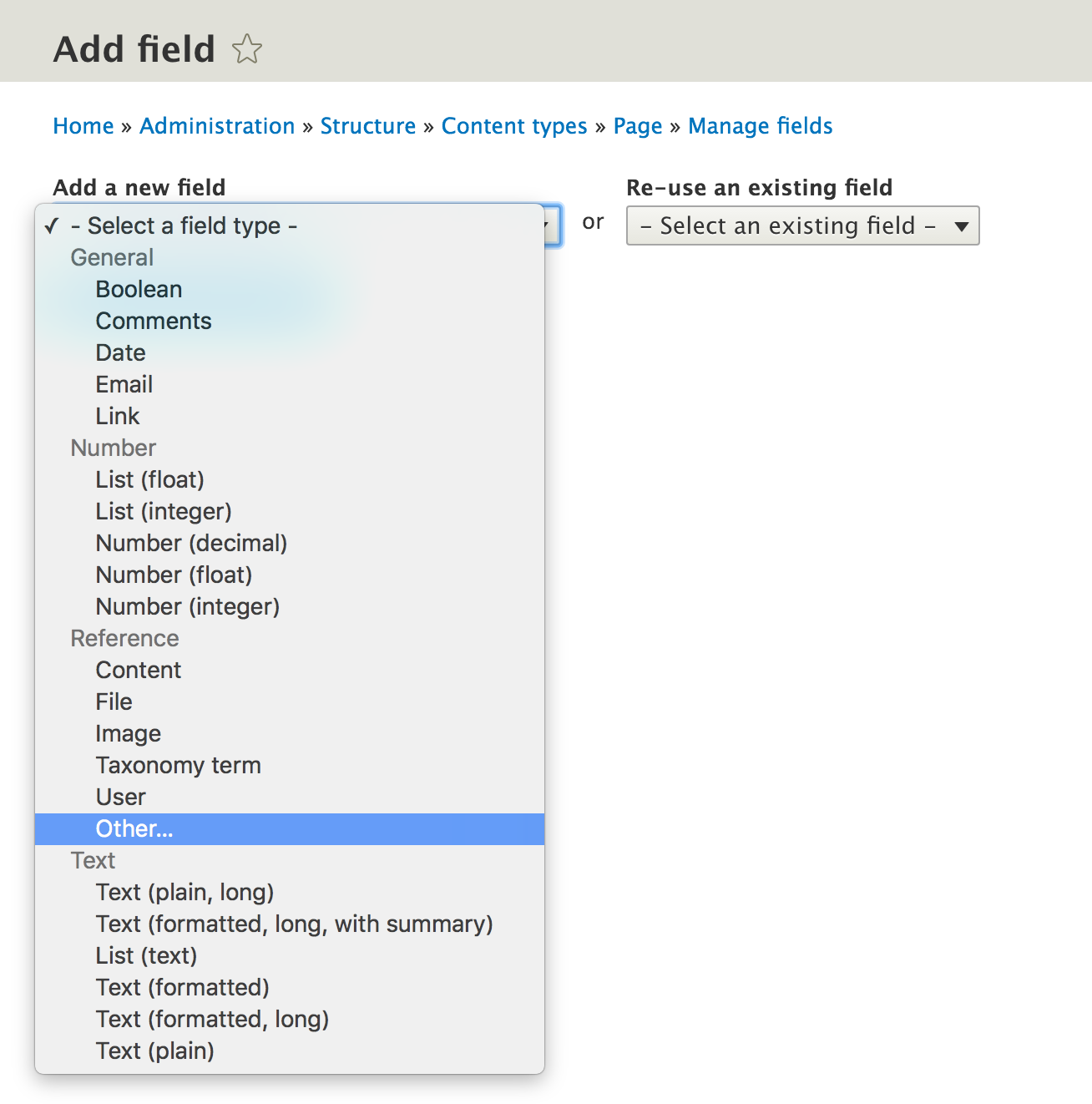
Step 1: We add an Entity Reference type field, and select the Other option.
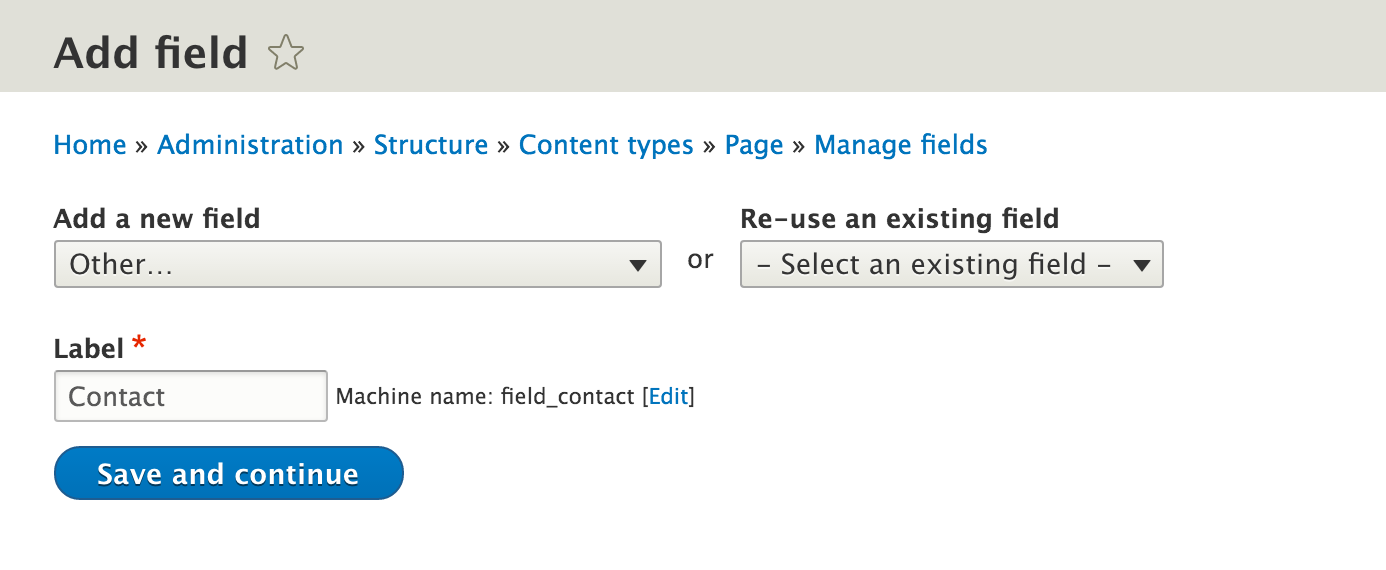
And we give it a label.
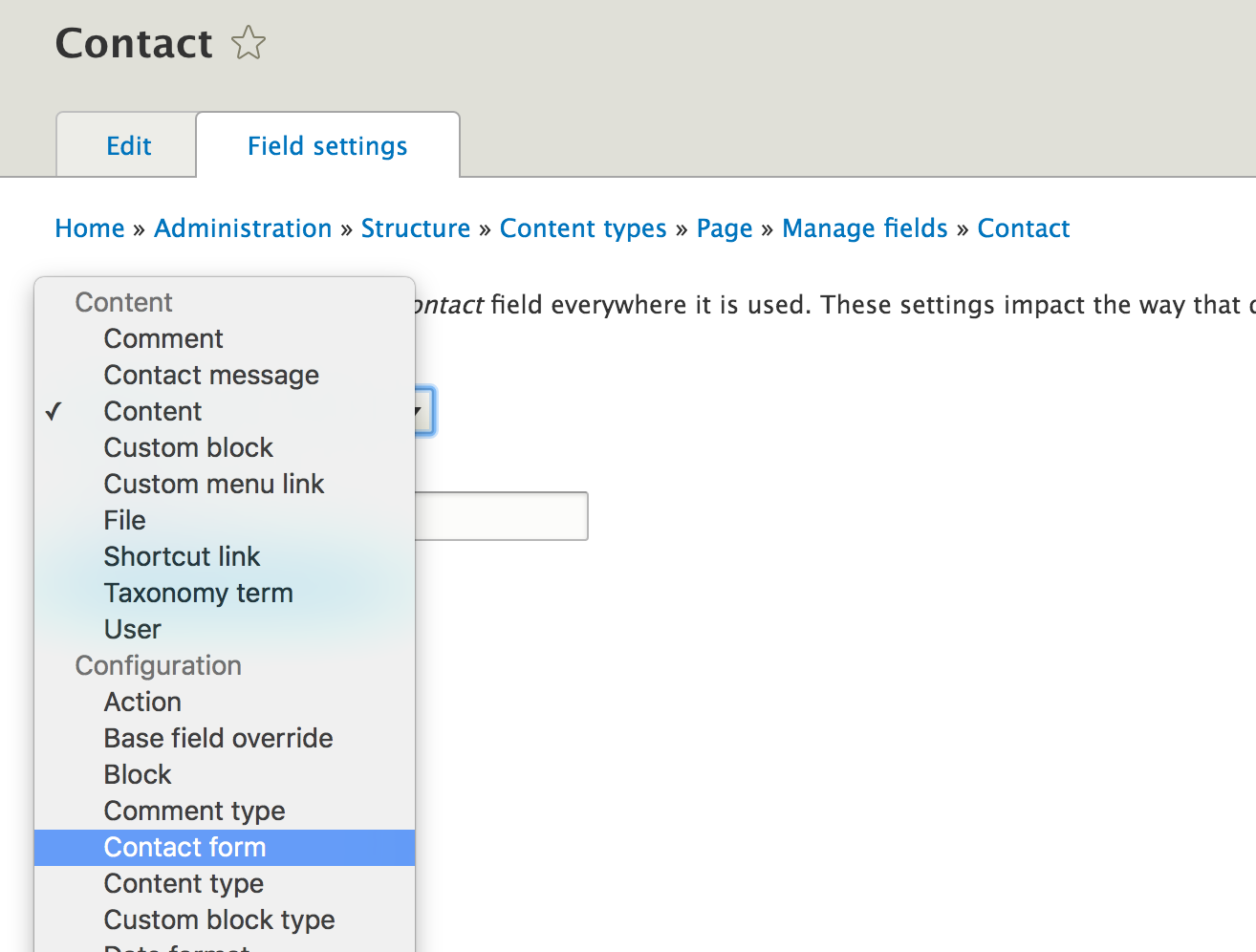
Step 2: After saving, we can select the entity we want to reference. We select the entity Contact form.
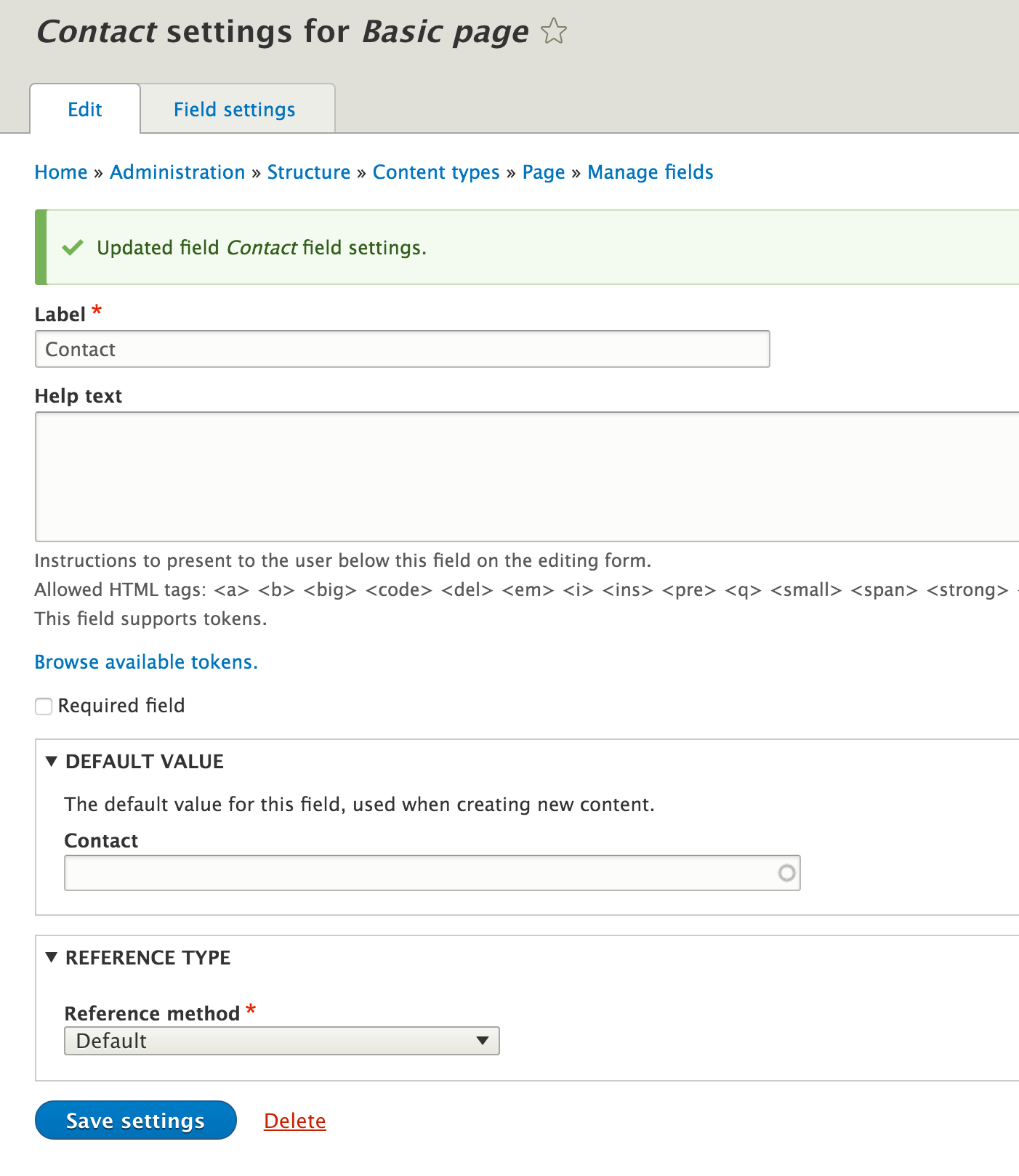
Step 3: We then get the field configuration page. We can keep the default options.
Step 4: After adding the field, we set up the display formatter for our field (in the manage display page configuration of the content type). We select the formatter Rendered entity for our contact field. This is where the Contact storage module step in by adding into the field formatter the Rendered entity option for displaying directly the contact form. Option which by default is not available.
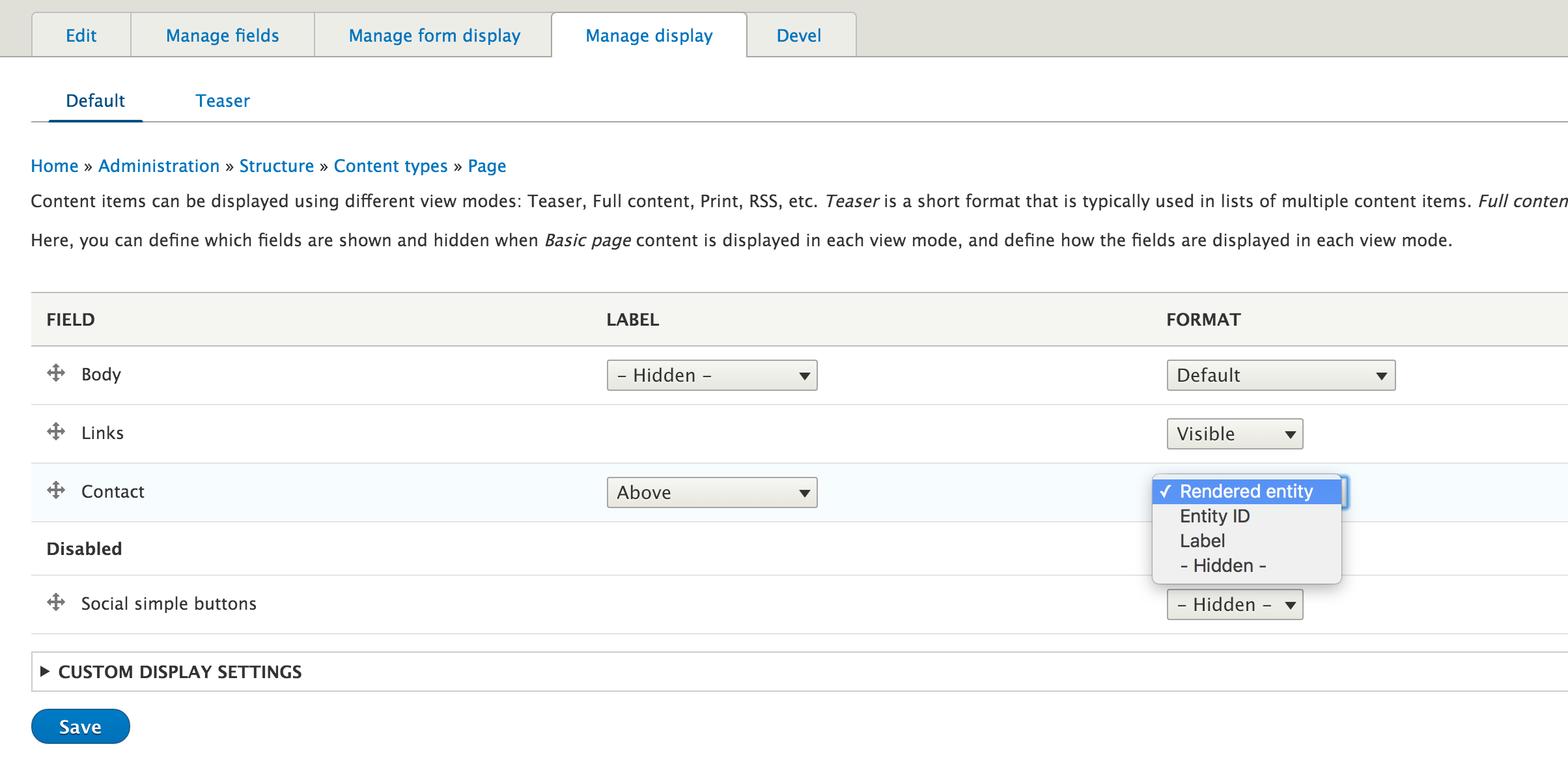
Step 5: And that's it!
We just need now to create our content, and select the form, we want to display, in the autocomplete field.
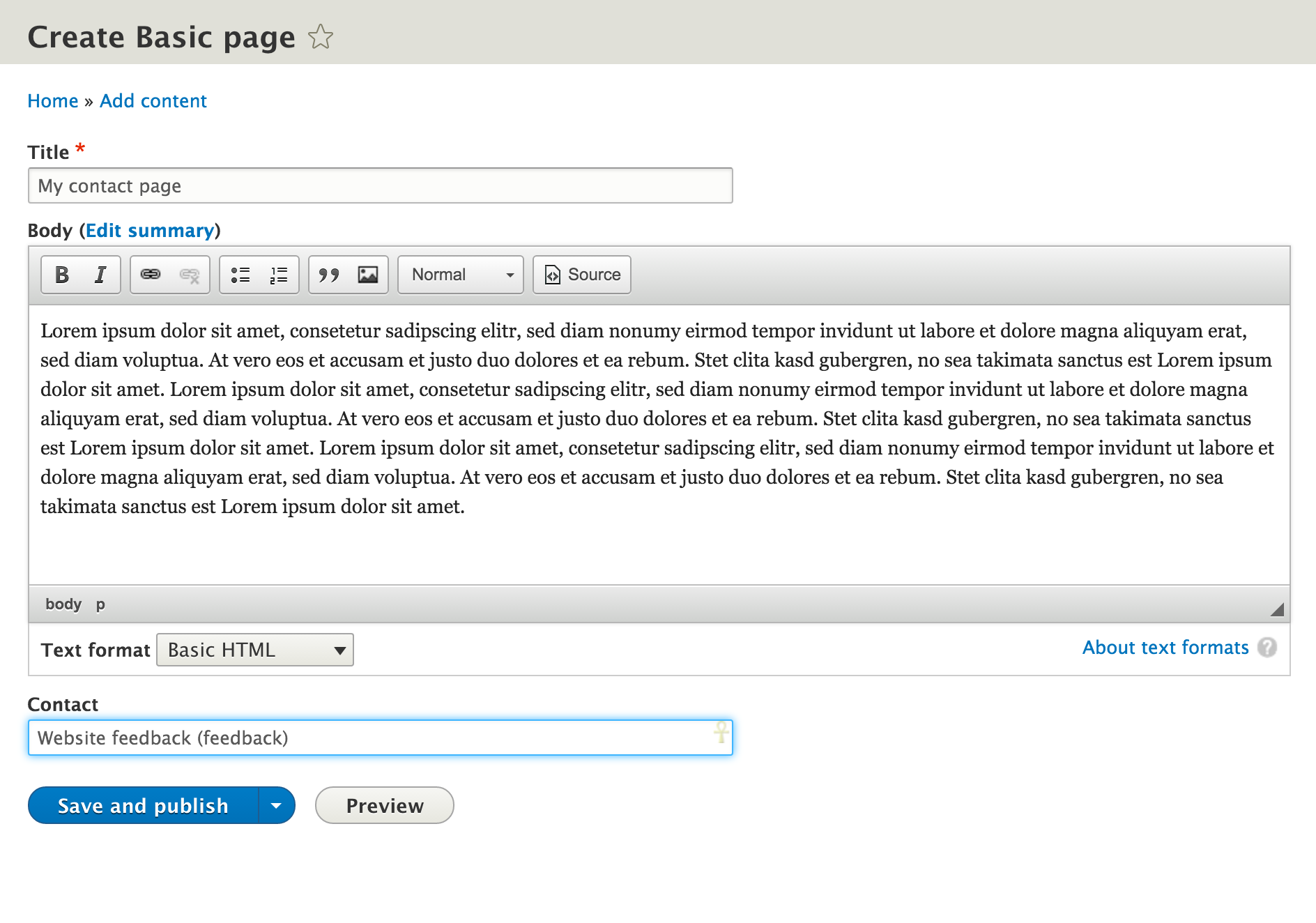
And we have our content with the form available for your visitors. We can of course, for each created content, select a different form.
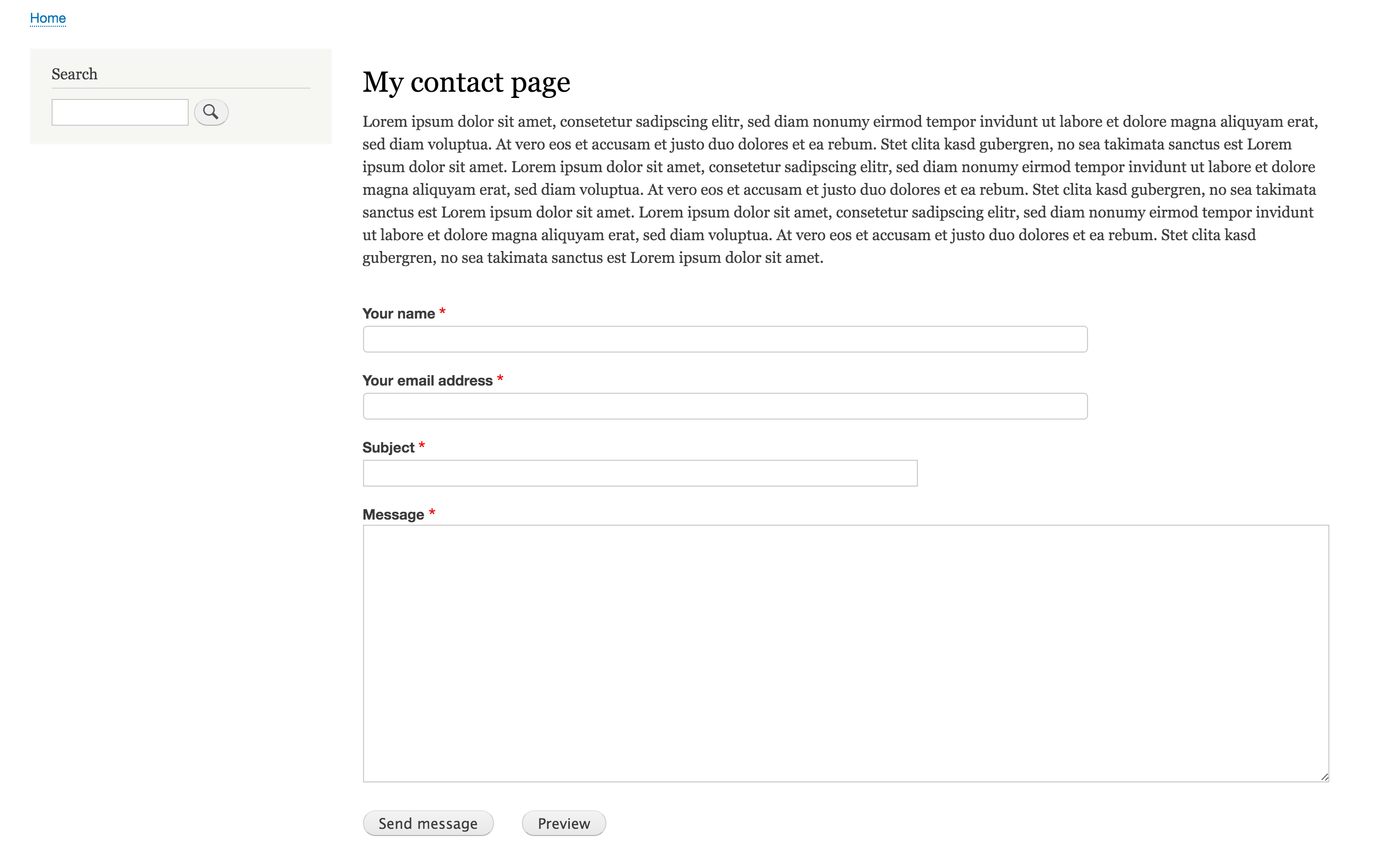
If you want to place your form on some others pages, simply do the same with a block, which you can then place where you want. And all this without any line of code. Effective not ?
Ajouter un commentaire